
Overview
This document will outline the steps in posting transactions for AP invoices, define some of the program’s key features and functions. Learn how to use the default layout, identify the purpose of each screen area, and look at some of the AP invoice posting program’s security features.
Process
The AP Invoice Posting program is used for processing invoices, debiting and crediting notes, posting adjustments to supplier accounts, and reconciling accounts payable invoices to goods received notes.
Pointers

Click the

button to post your entry. Use the Tab key to advance to the next field.
AP Invoice Posting
The procedures outlined below will illustrate how to process a local currency invoice received from a supplier where no GRN matching is required.
Menu Path:
AP Invoice Posting > Accounts Payable > Invoice Processing > AP Invoice Posting.
For AP invoice posting, the default Transaction Type is “Invoice”. Before entering the supplier code, set the transaction type to Credit Note, Debit Note, or Adjustment. Enter the supplier code into the Supplier field or use the magnifier to select, then press Tab.
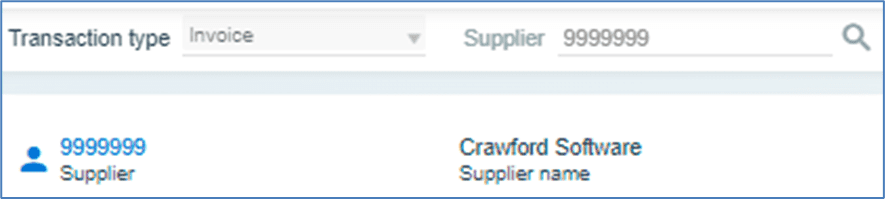
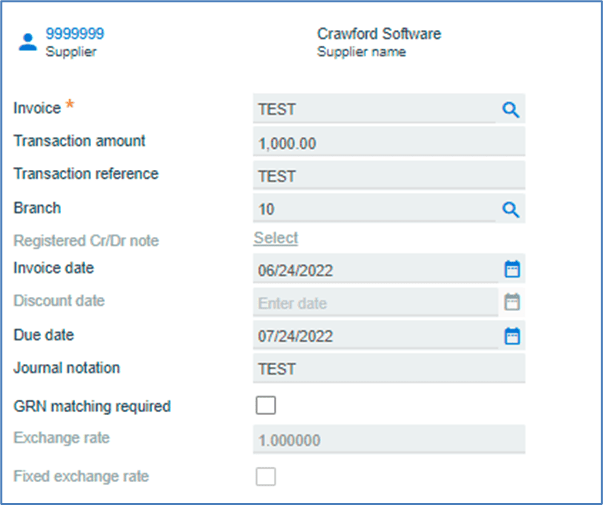
Enter the invoice details as shown in the steps and diagram listed below.
- Invoice number:
Enter the supplier’s document number.
- Transaction amount:
Enter total transaction amount including tax.
- Transaction reference:
Enter a free-form reference for the transaction.
- Branch:
Enter default branch of the supplier.
- Invoice date:
The transaction date defaults to the current system date, but can be changed.
- Due date:
The invoice’s due date is auto-populated with supplier’s term code, but can be changed.
- Journal Notation:
Enter transaction description which will appear in the AP Invoice Journal.
- GRN matching required:
Deselect this option
Enter the required Transaction Details as shown in the diagram and steps below.
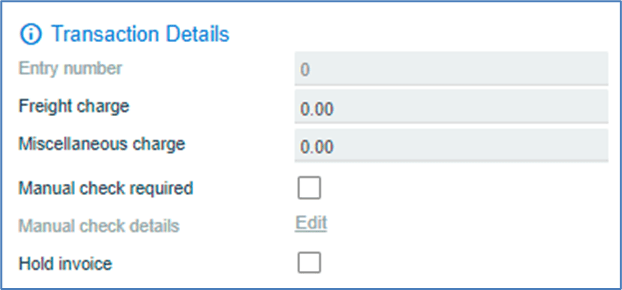
- Freight charge:
Enter applicable freight charge amount.
- Miscellaneous charge:
Enter applicable miscellaneous charge amount.
- Manual check required:
Enter payment details for a manual check.
- Hold invoice:
Select check box to place the transaction on hold.
- Click on: GL Distribution
- Enter the Ledger code to be debited, or select using the magnifier.
- GL Description will auto populate
- Amount will auto populate.
- Click on the button with the green Arrow to post the transaction.

The steps outlined below will show how to process a local currency invoice received from a
Supplier where the GRN matching is required.
- Enter the Supplier code.
- Add the required Invoice information.
- Select the GRN Matching Required option.
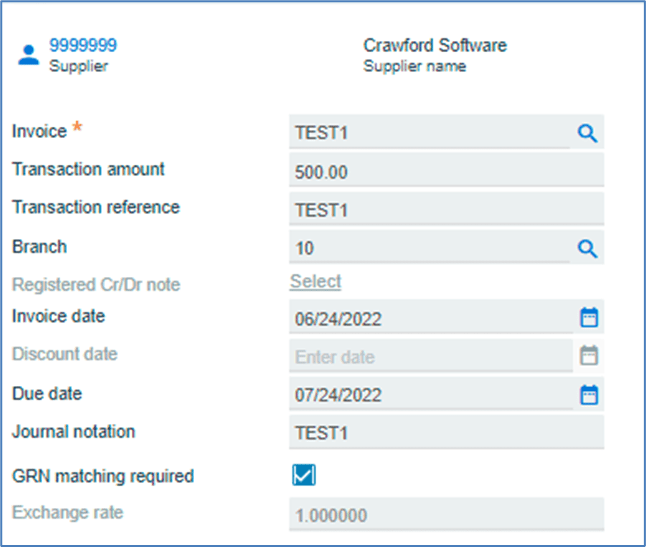
- Click on GRN Matching
- Click on Load GRNs, then hit Enter

- Browse the GRN, then click Apply
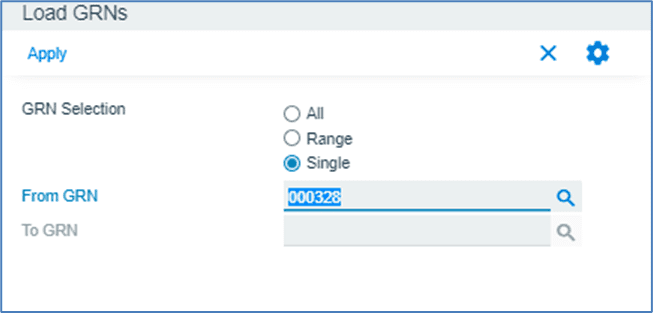
- Click on GL Distribution
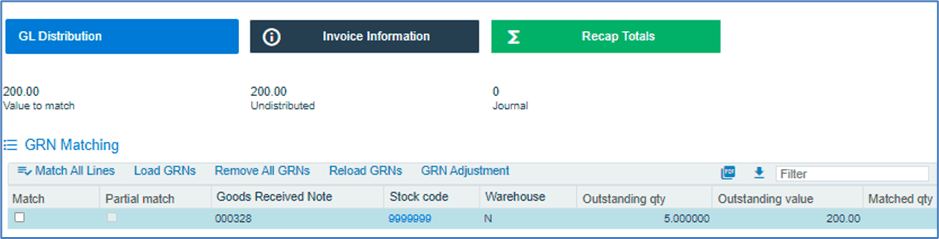
- GL code to debut will auto-populate

- Click green Arrow button to post the invoice
Credit Note Posting
A credit note is a document used to credit a supplier’s account. It is issued to correct a mistake on the invoice, such as an overstated amount or an incorrectly applied discount rate.
Menu Path:
AP Invoice Posting > Accounts Payable > Invoice processing > AP Invoice Posting
- Select Credit Note as the Transaction Type.
- Enter Supplier Code in the Supplier field or select it with the magnifier, then press Tab.
- Enter the invoice for which the credit note needs to be processed. If an invoice is no longer visible in the Accounts Payable module, you can re-enter its information.
- Enter The required invoice information as shown below.
- Transaction Amount
- Reference
- Journal Notation
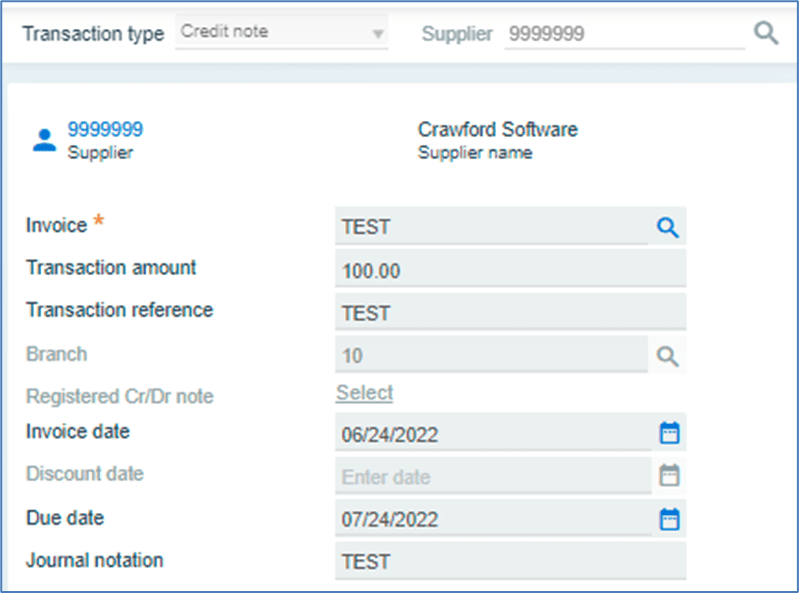
- Click on GL Distribution
- Enter the GL code
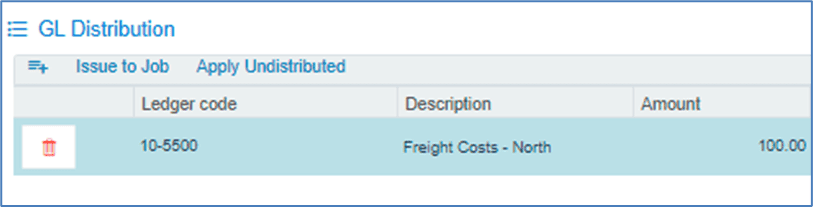
- Post option will be enabled when the undistributed amount reaches zero.

- Click the green Arrow button to post the transaction.
Debit Note Posting
a credit note is a document that is issued against the supplier to debit their account when you are undercharged.
Menu Path:
AP Invoice Posting > Accounts Payable > Invoice Processing > AP Invoice Posting
- Select the transaction type as Debit Note
- Enter the supplier code in the supplier field or select through the magnifier and press Tab
- Enter/Select the invoice against which the debit note must be processed. You can re-establish the invoice details if the invoice no longer exists in accounts payable module.
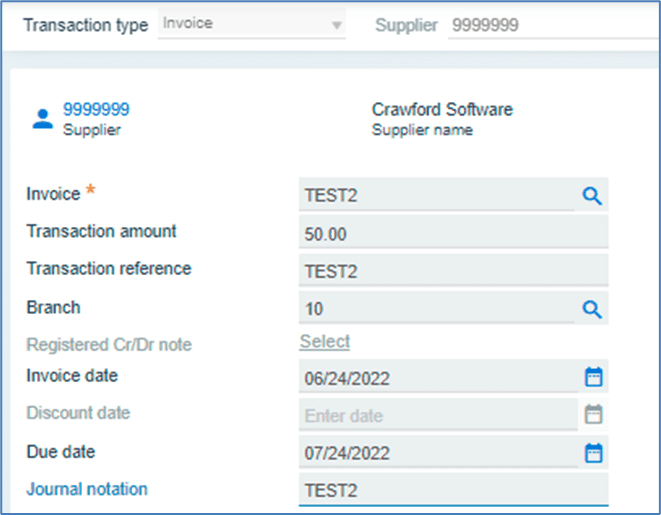
- Enter the invoice information as shown below.
- Transaction amount
- Reference
- Journal notation
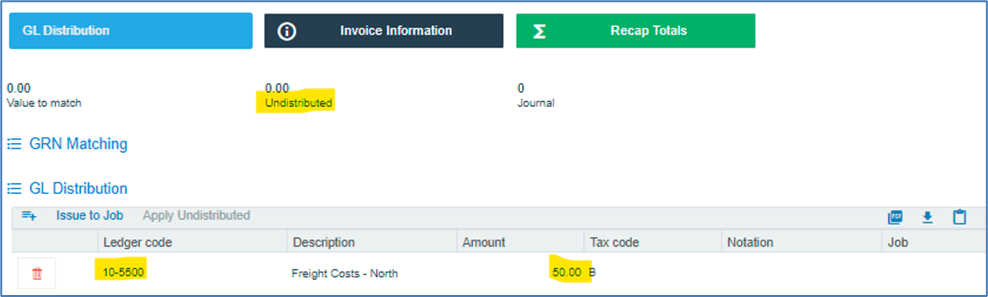
- Click on GL Distribution
- Enter the GL code
- Click the green Arrow button to post the transaction.
Adjustment Entry Posting
Adjustment Entry is used when you discover an invoice was incorrectly captured on the system.
Menu Path:
AP Invoice Posting > Accounts Payable > Invoice Processing > AP Invoice Posting
- Select Adjustment as the transaction type.
- Enter the supplier code in the supplier field or select it using the magnifier, then press Tab.
- Enter the invoice for which the debit note should be processed. If the invoice is no longer in the Accounts Payable module, you can re-enter the details.
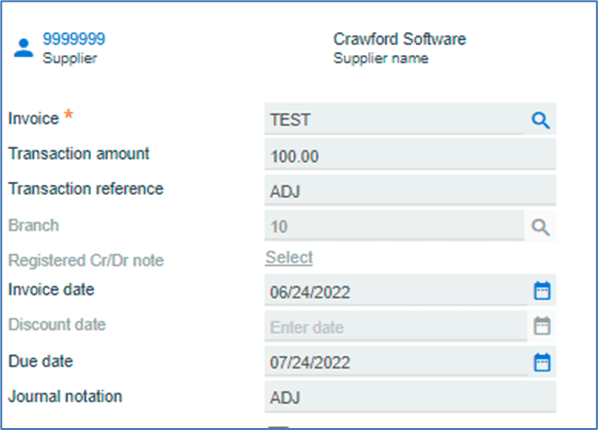
- Enter the following adjustment requirements.
- Invoice Number
- Transaction Amount
- Transaction Reference
- Journal Notation
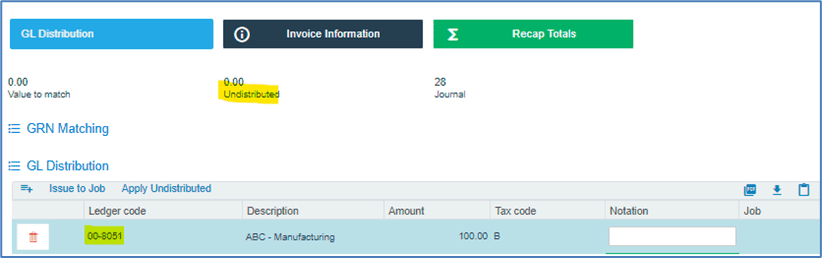
- Include the general ledger requirements outlined below.
- Select GL distribution
- GL code
- Click the green Arrow button to post the transaction.