Overview
This document will outline how to create favorites in SYSPRO.
Creating Favorites in SYSPRO
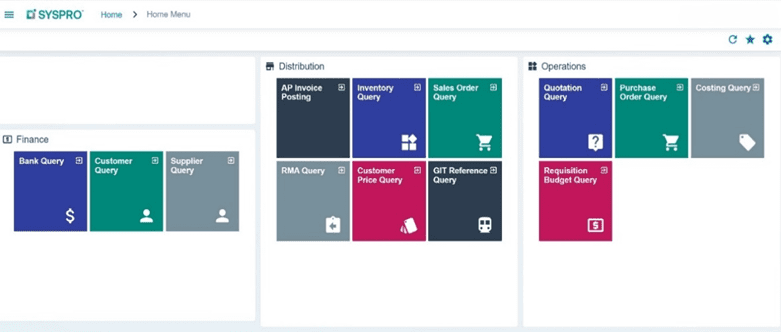
SYSPRO provides the user the ability to group favorites into user-defined categories that can be Opened or Collapsed. The user can enter the category names, have categories be role-based and create shortcuts to the application.
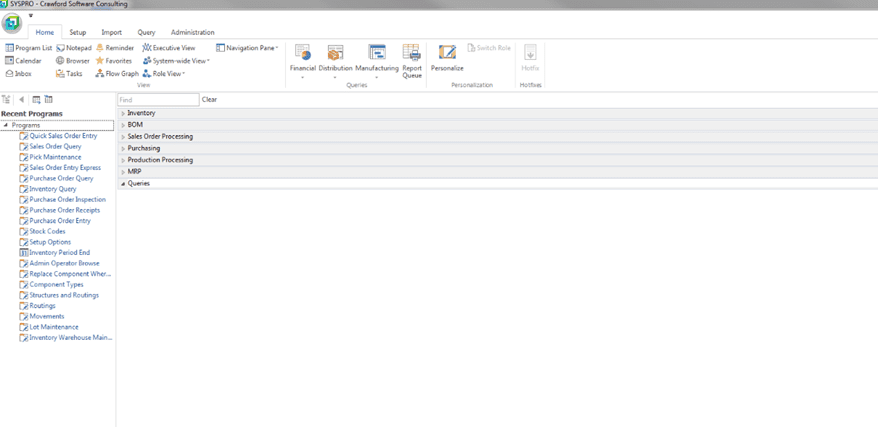
Step 1: Add a Category
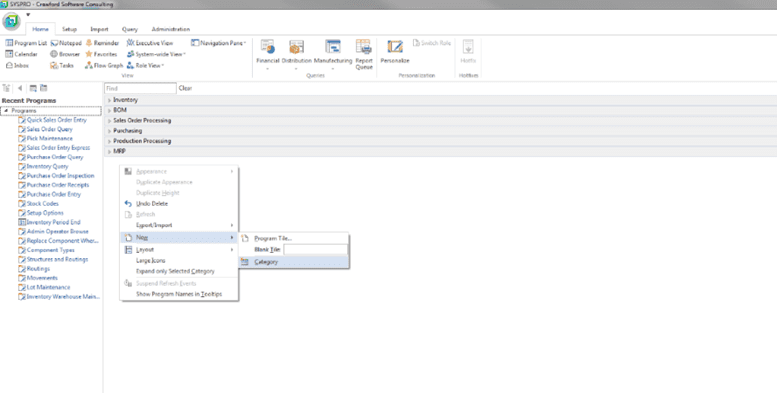
- Right-click in the favorites panel and select NEW.
- Select category, this will allow you to name the new category.
- Press enter key.
Step 2: Naming the Category
- Enter the name of the new category.
Step 3: Placing the Shortcut
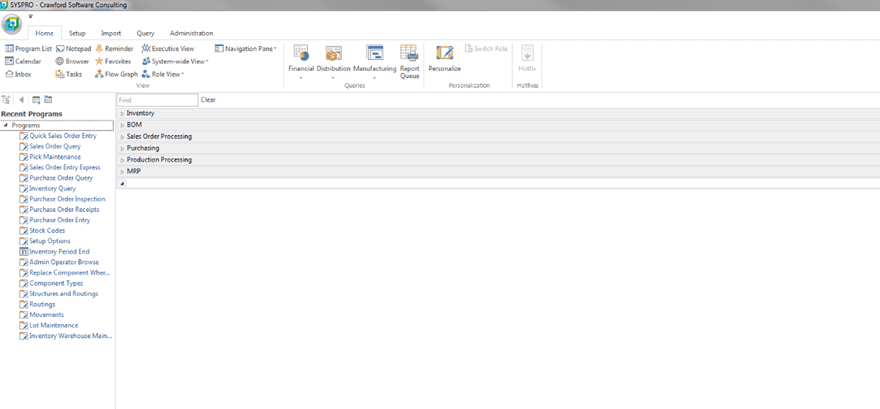
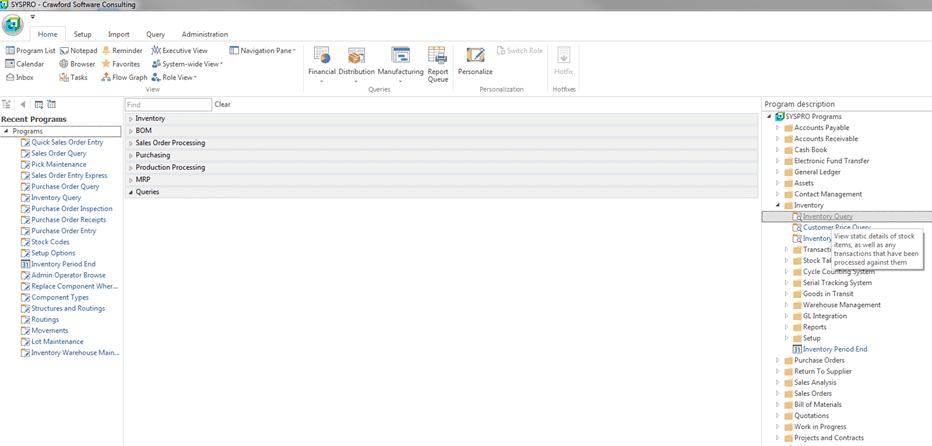
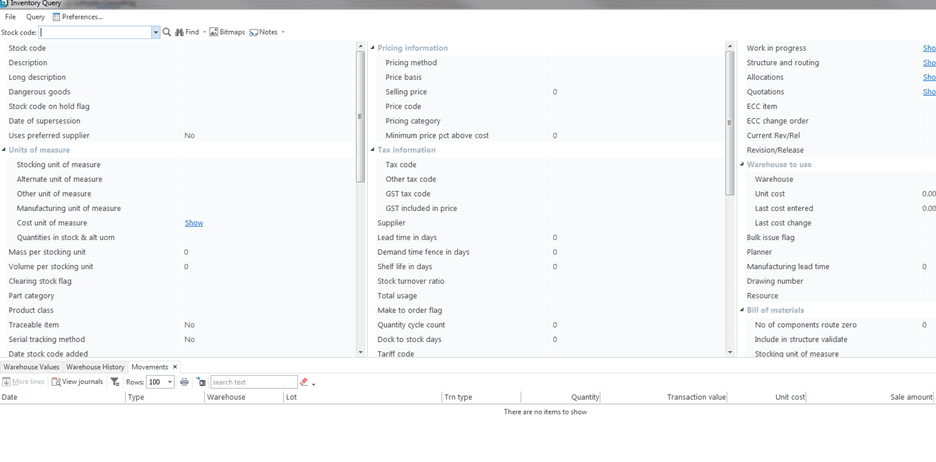
- From the programs list, select desired application and drop it into the appropriate category.
- Position the application in the category you want to create for the shortcut, then select.
- To save favorites, you must exit and then reenter SYSPRO.
Step 4: Changing Name of a Category
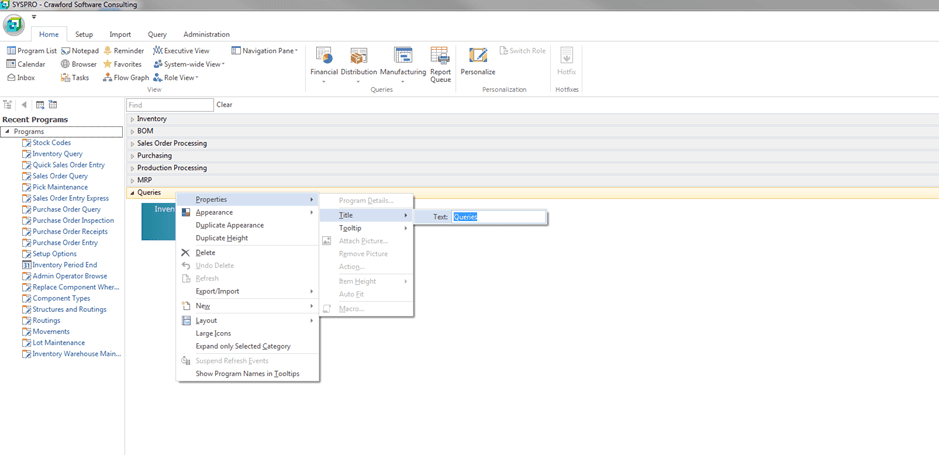
- Right-click to change the name of category.
- Click on properties.
- Click on title.
- Change text with a new name.
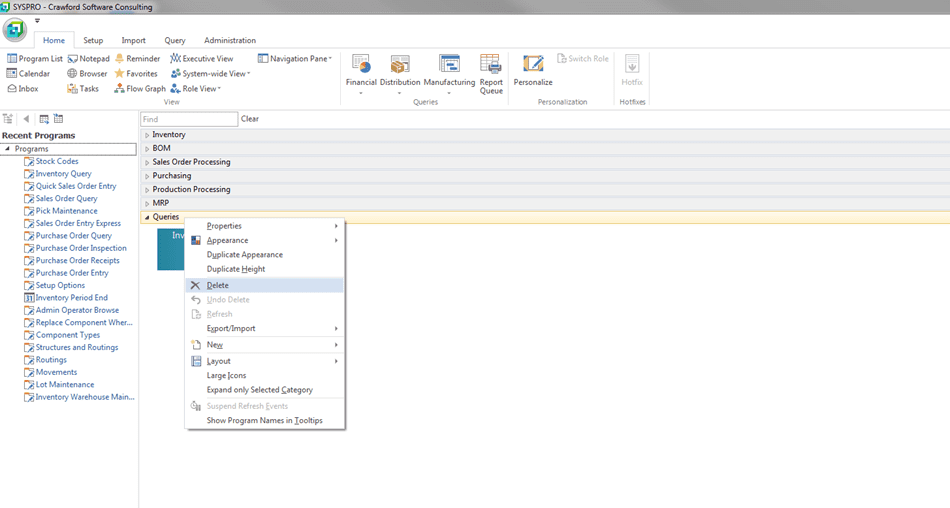
Step 5: Deleting a Category or Favorite
- To remove a category, right-click on the category and select Delete.
- To remove a favorite, right-click on that favorite and select Delete.
Step 6: Signing out of SYSPRO to Save Changes
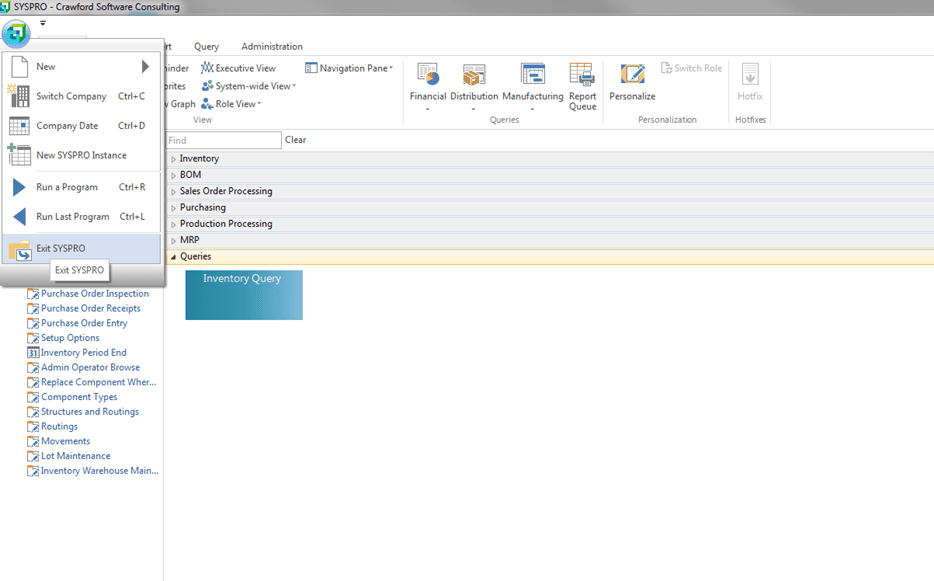
- Click on the SYSPRO icon located in the upper right corner.
- Click on Exit.
- Changes or additions to your SYSPRO favorites are saved.