01
Sign In To Syspro Avanti
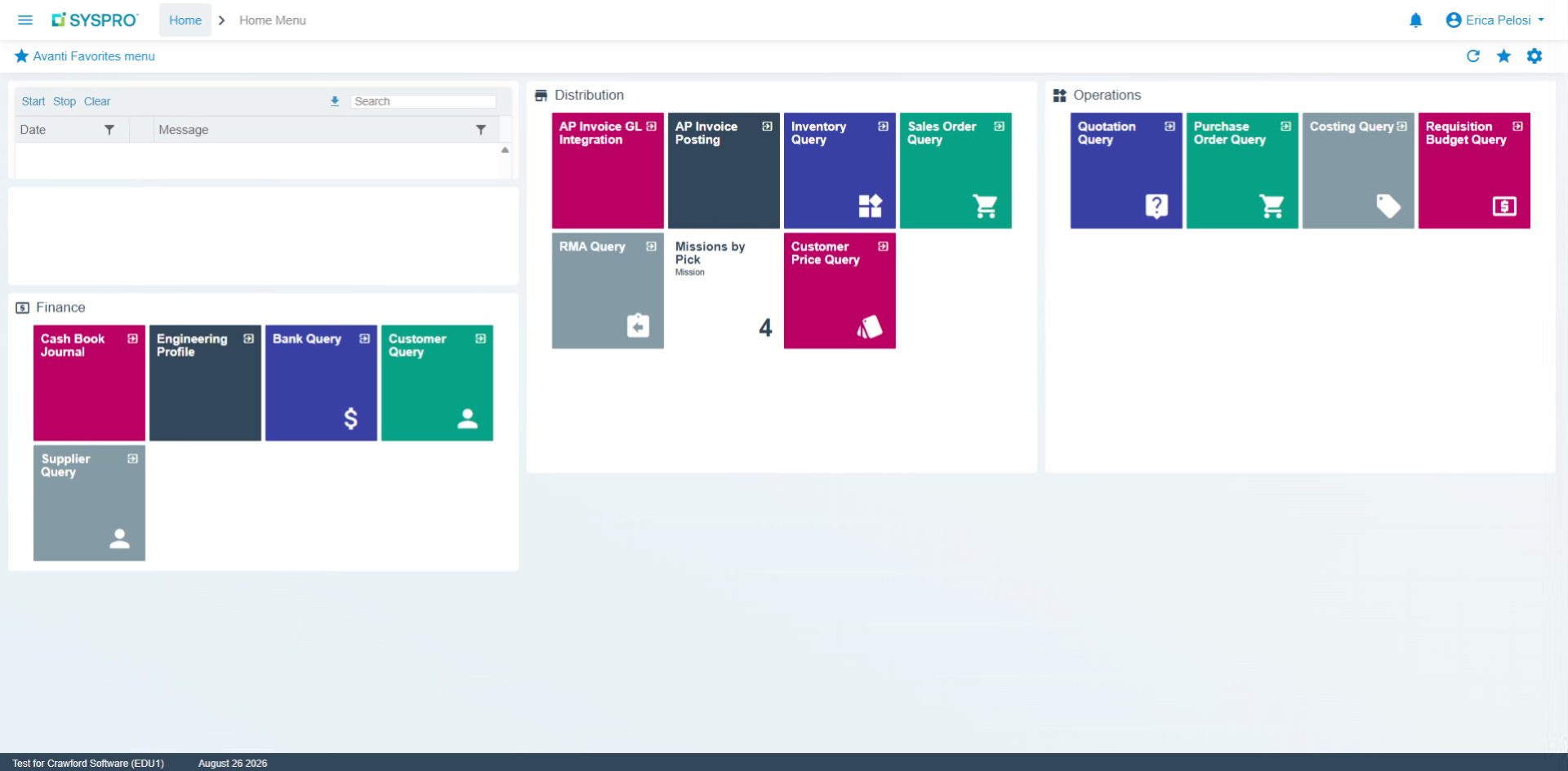
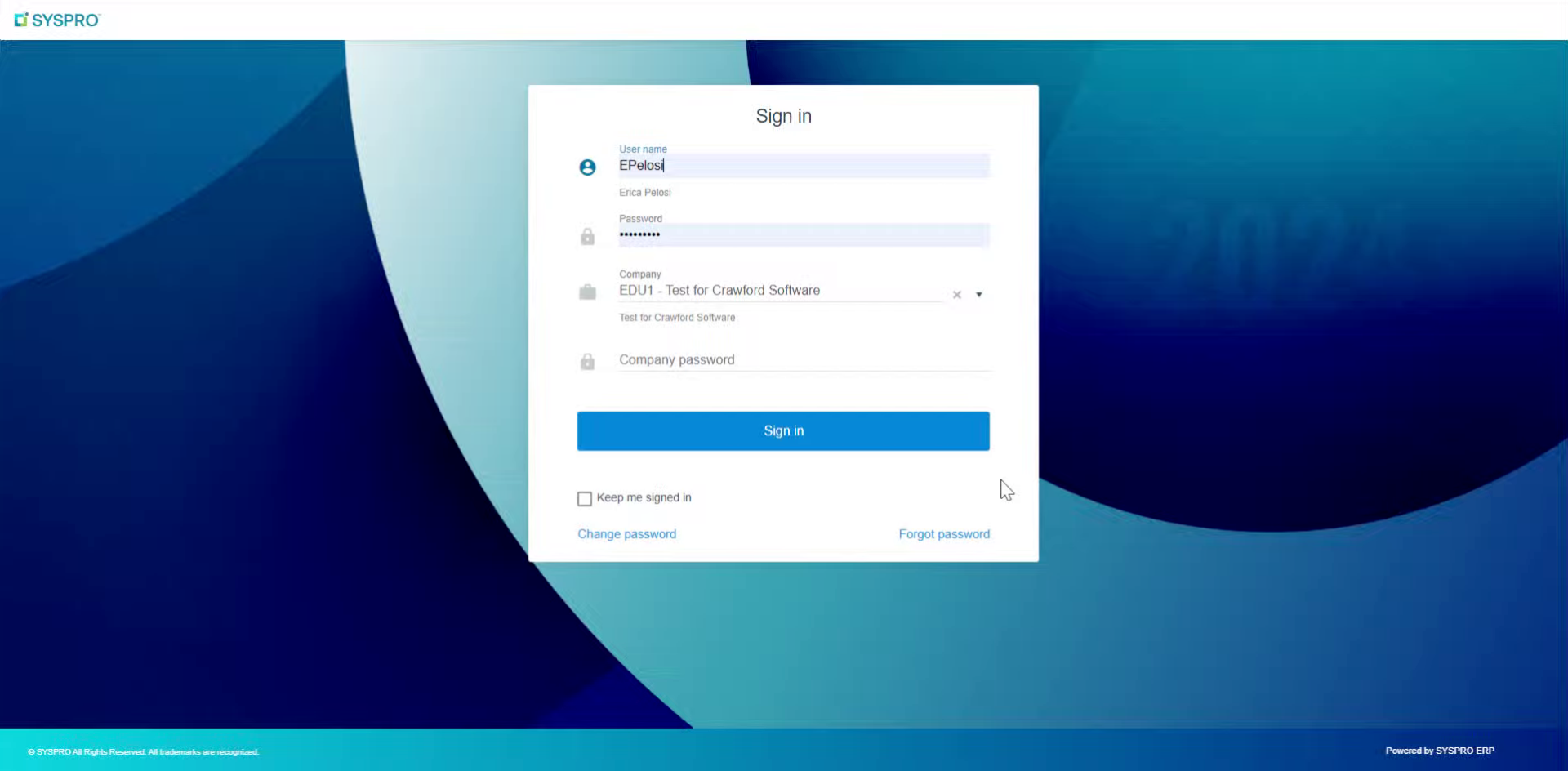
Hello, today we’re going to talk about Syspro Avanti, master data, and how you can view, edit, and add new suppliers into your Syspro Avanti system. First, we’ll enter our credentials and hit sign in.
Video content
02
Navigate To Suppliers Setup
It’s going to bring us right to the home menu here. We’re going to go to this hamburger menu up on the top left, click on there. It’s going to load all of our different programs. We’re going to go to accounts payable for this. We’re going to go down to setup and then scroll down to suppliers.
Video content
03
View Supplier Data Overview
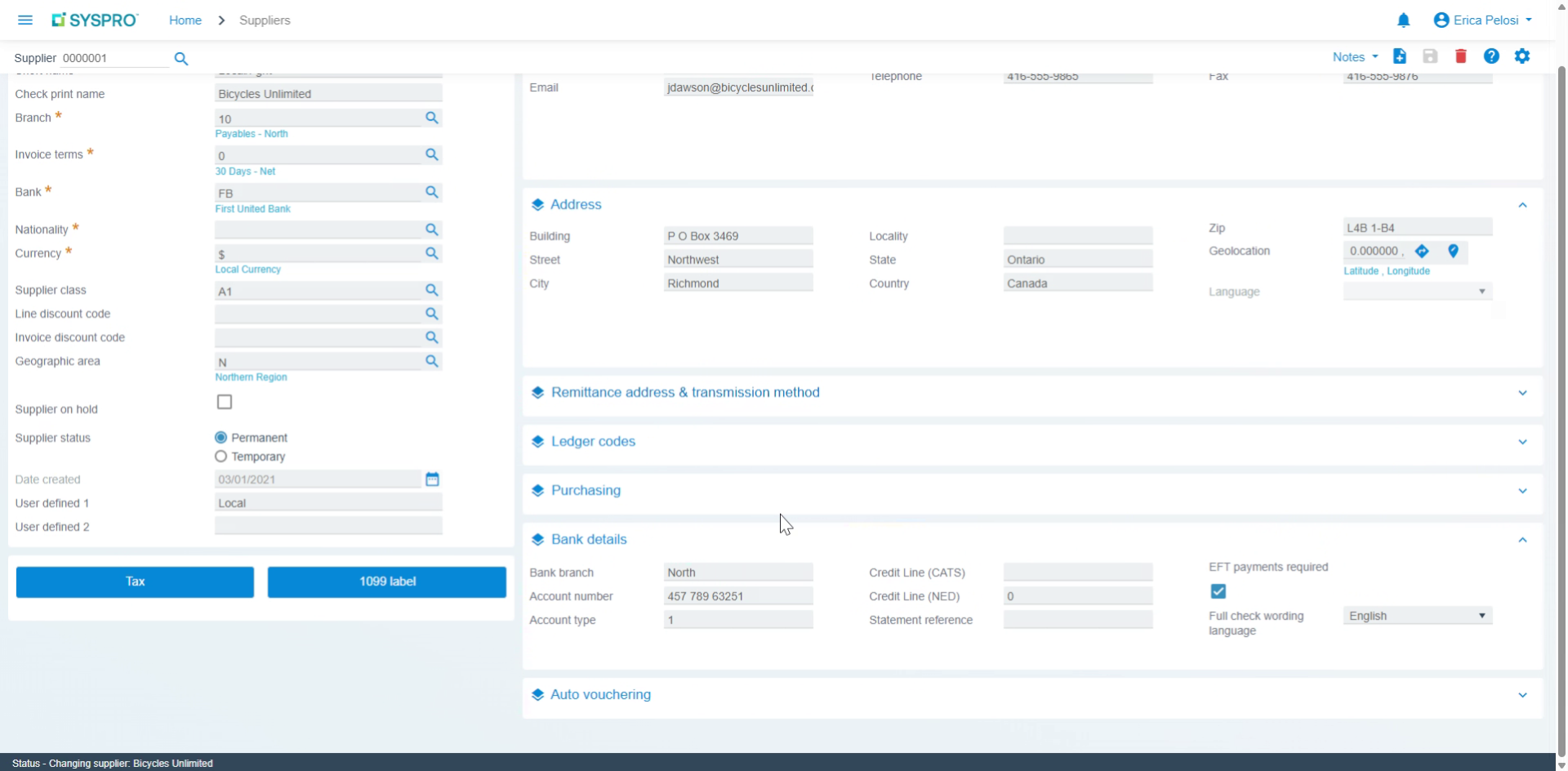
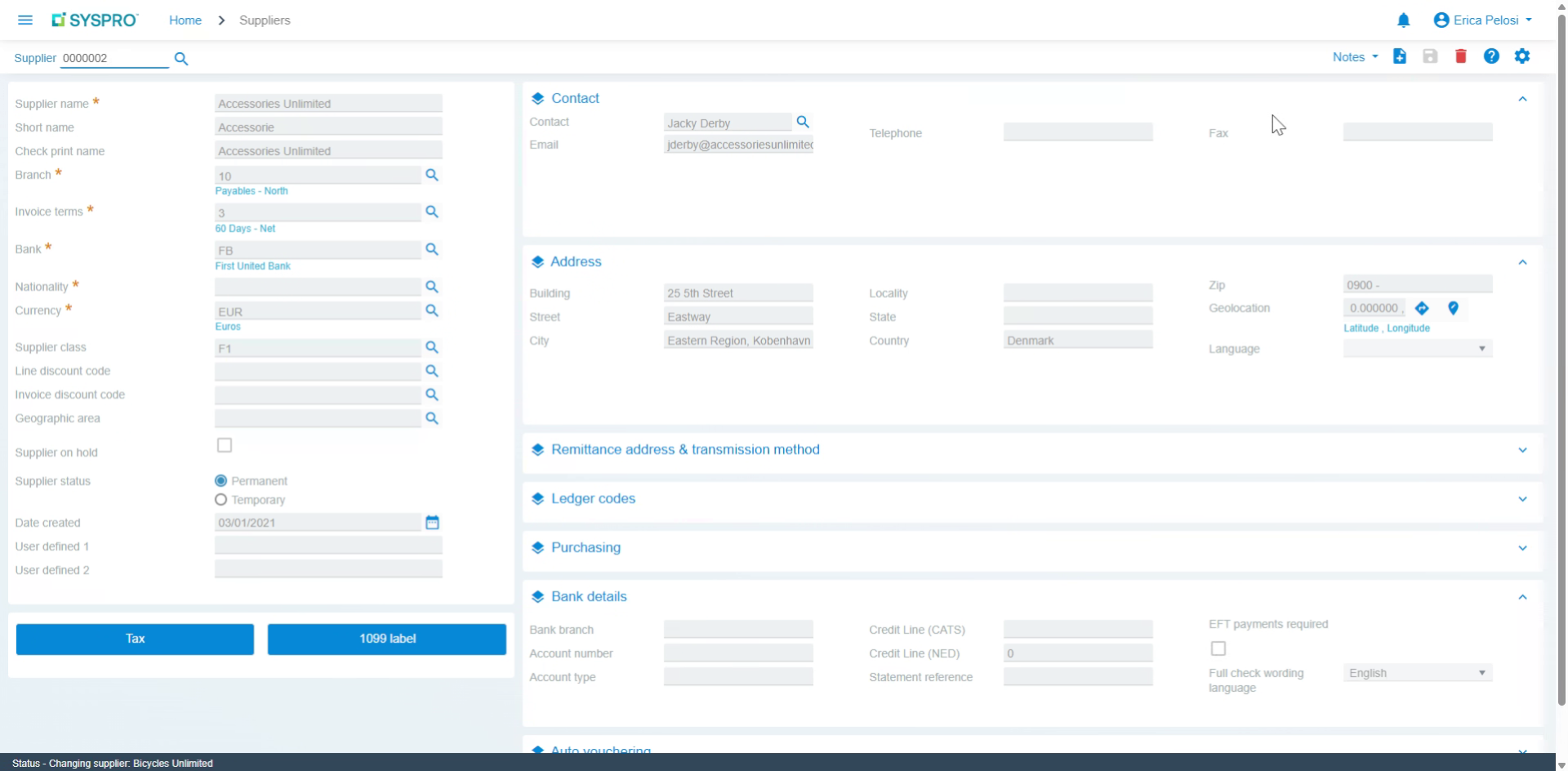
As it loads all of our suppliers here, we can hit this magnifying glass to find the one we’re looking for. Today, we’re going to do Bicycle Unlimited to get all of our data. Here, you can see the supplier name, the print name, branch if you have multiple branches, all the invoice terms, banks, and all this information. Also, any contact information for financial contacts, their address, and any other information.

Video content
04
Edit Supplier Information
You can edit this if you are the admin. You can make any changes here and then hit save. Or you can simply go back and search for a new supplier. It will pull up someone new, and you can then edit accordingly.
Video content
05
Add New Supplier
If you need to add a new supplier, it’s very simple. You hit this plus button here and add new supplier. Then you enter in all of the required information and hit save. Everything will be saved in your system.
Video content
06
Access Supplier Query Menu
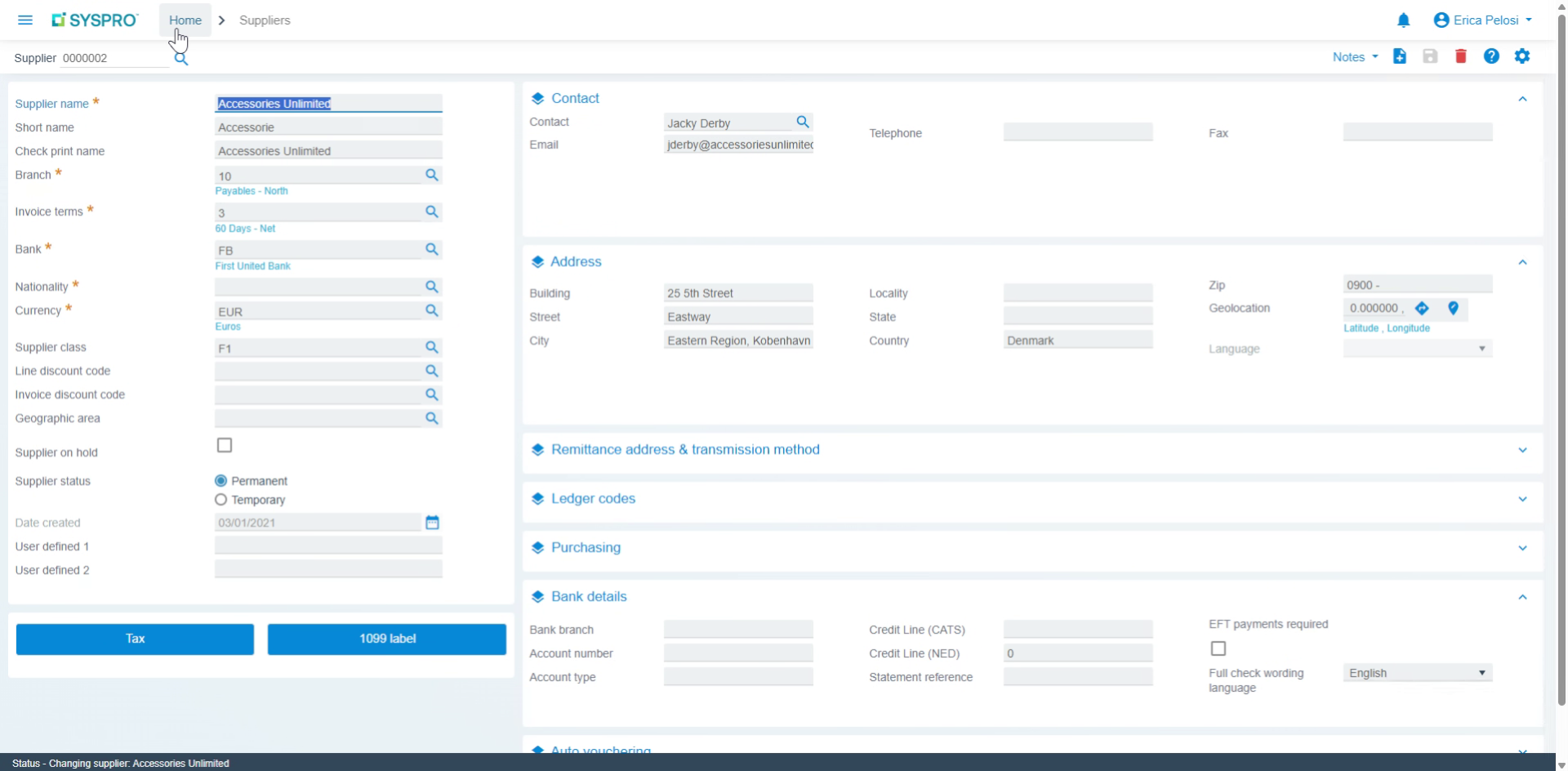
Next we want to go into Supplier Query We’ll go back to the home menu.
Video content
07
Search Supplier In Query
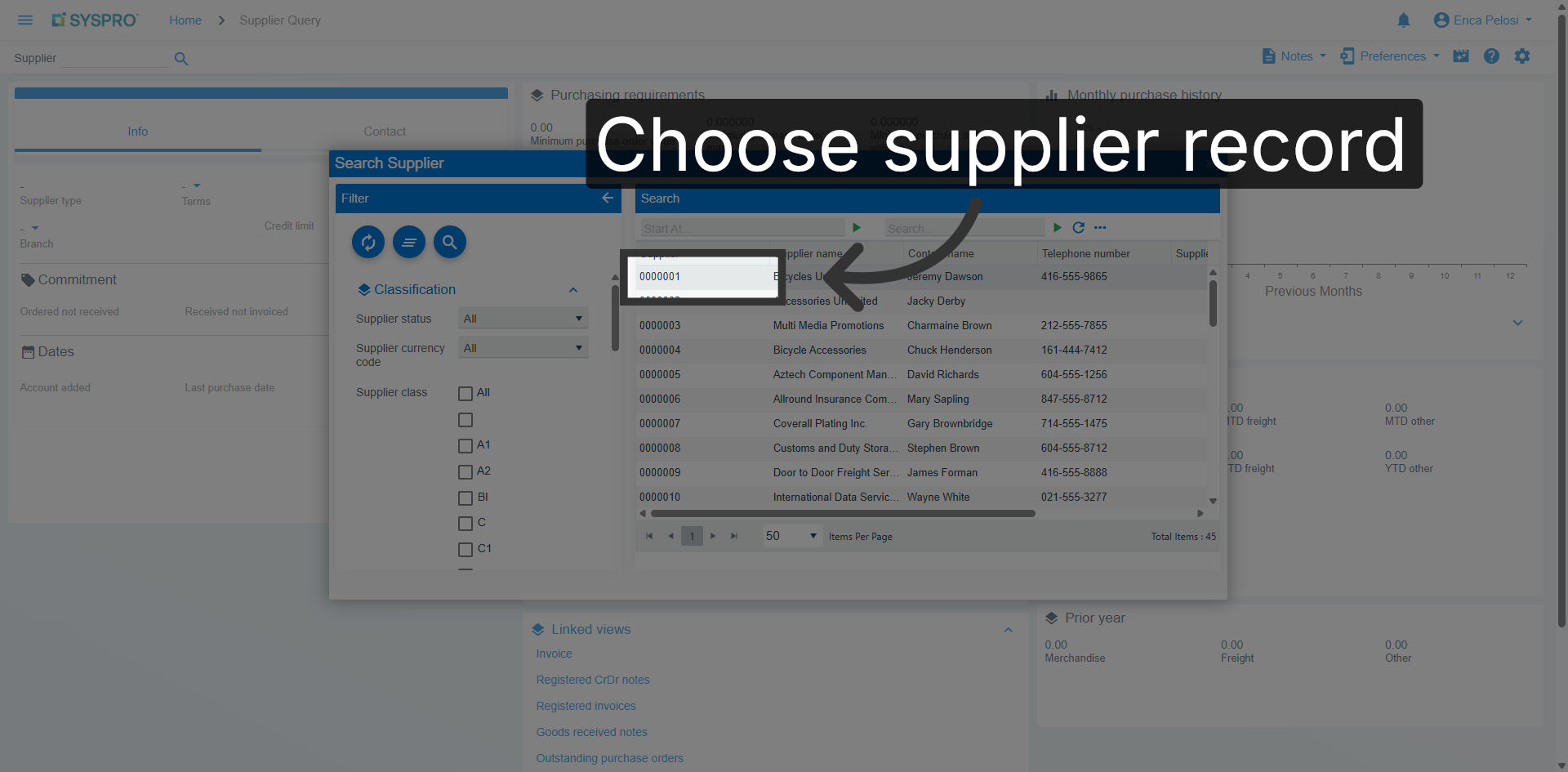
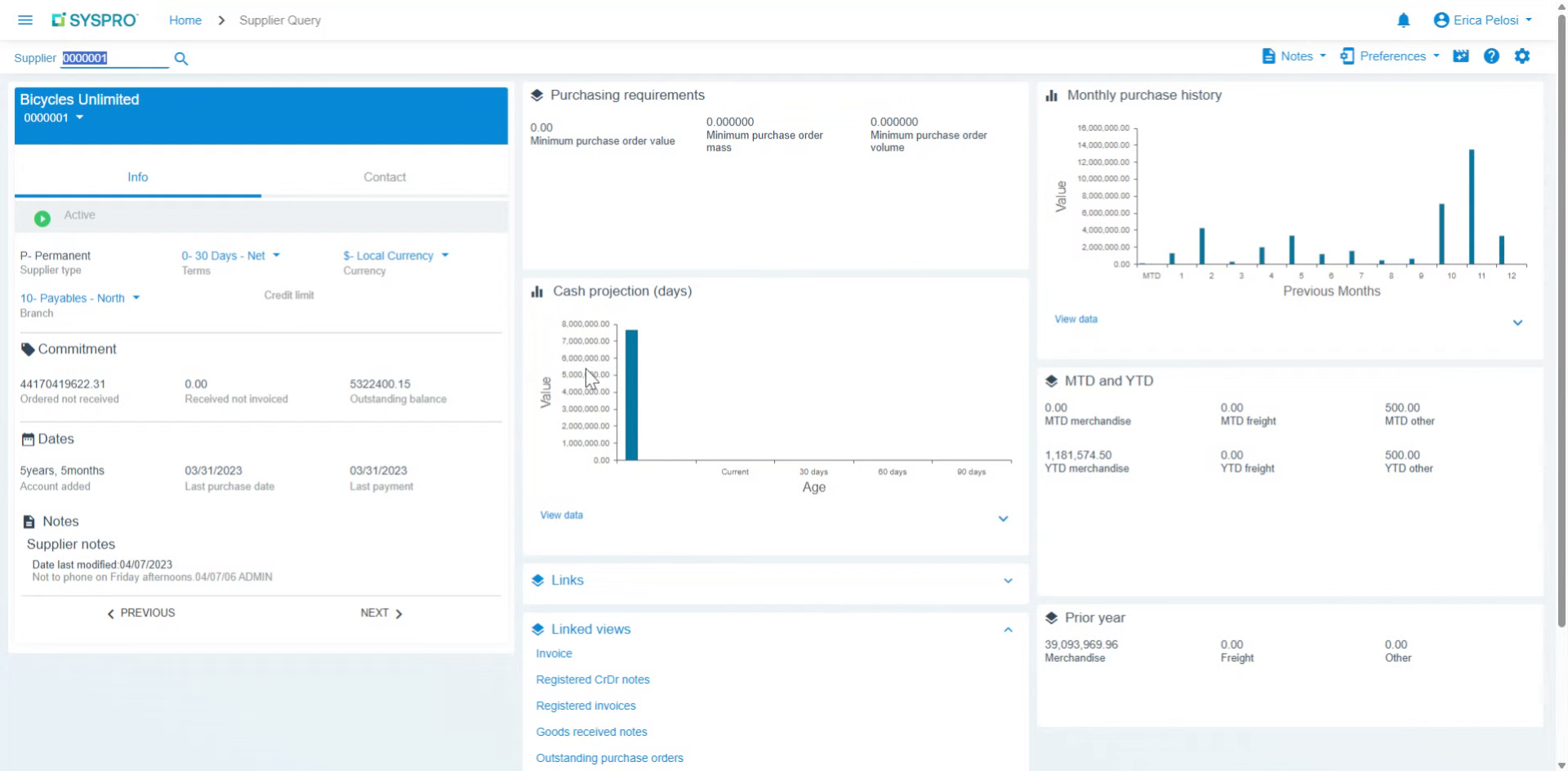
As it loads, there is no data until you select a supplier. We need to search for the supplier that we’re looking for.

Video content
08
Select Supplier Record
Select the supplier record to view detailed payment and transaction information.
09
View Supplier Payments Summary
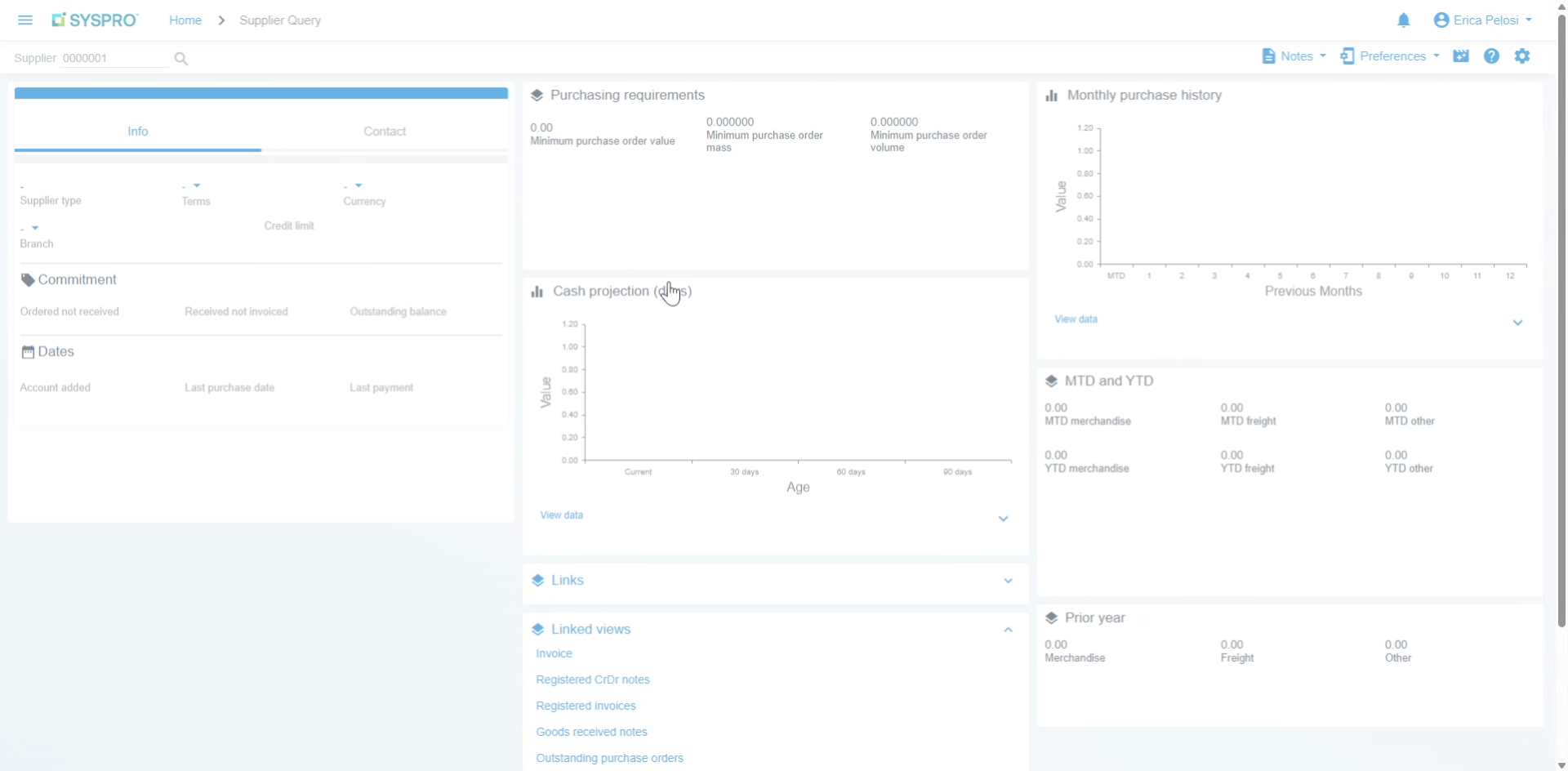
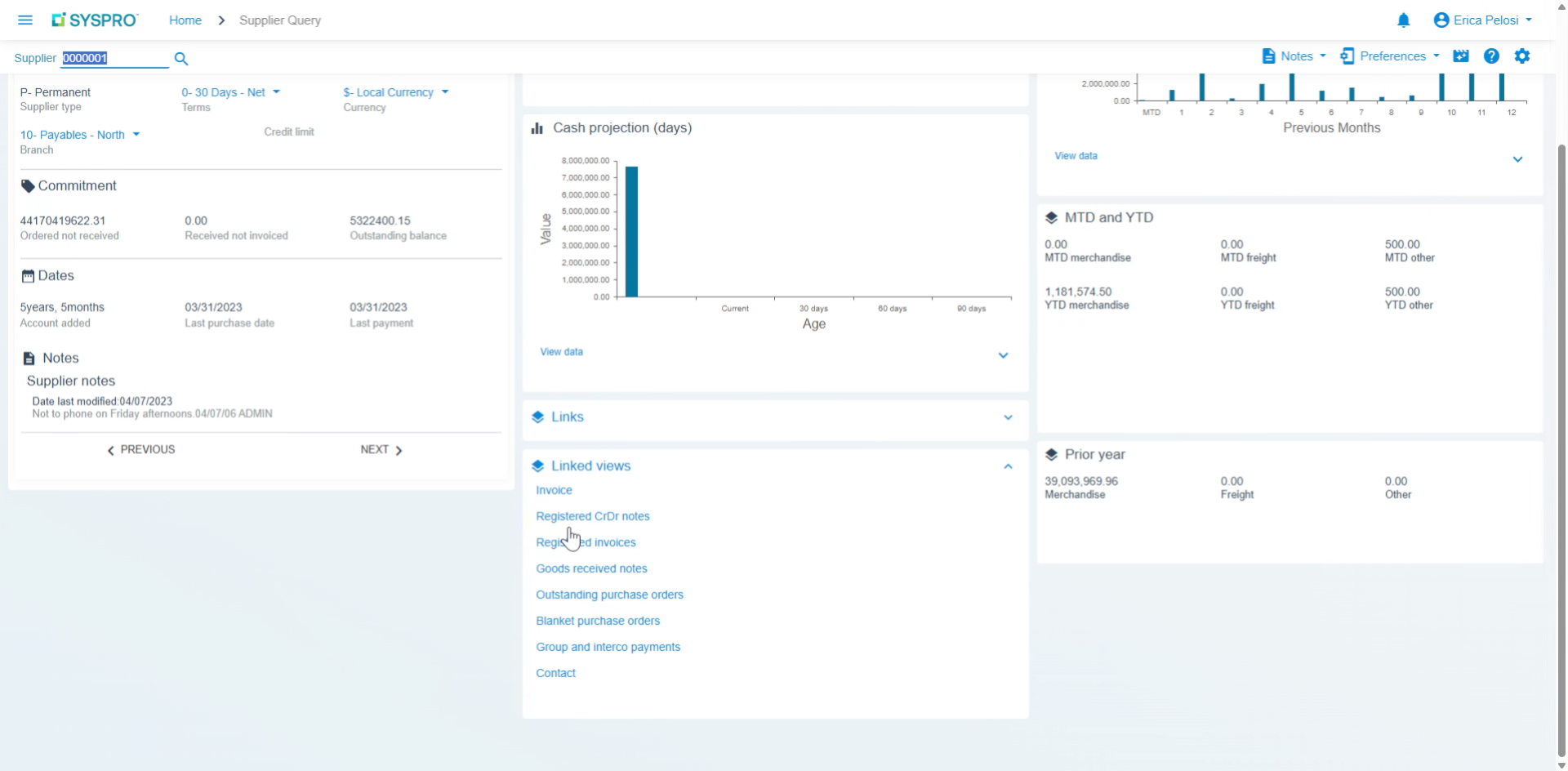
Bicycles and Unlimited again. Now we can see all of the payments over the course of the monthly purchases, the previous months, year to date, month to date information. You can then come down here to different linked views and you can do invoices.
Video content
10
Explore Linked Invoice Views
Registered CRDR notes, registered invoices, etc. This is where all of your information lives. If you want to see a specific invoice, click here and open it up.
Video content
11
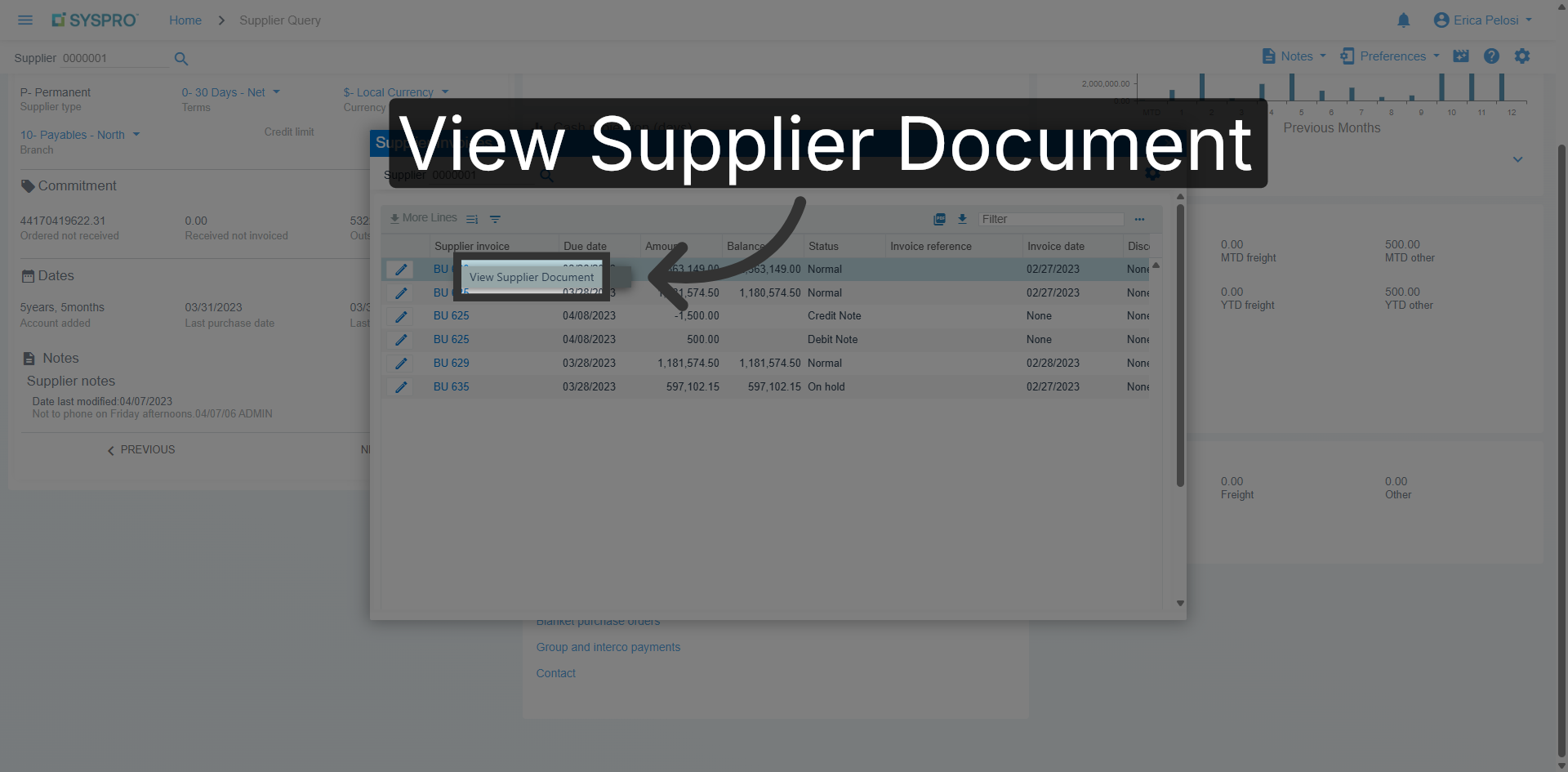
View Supplier Document
Click the view supplier document button to access detailed invoice information.
12
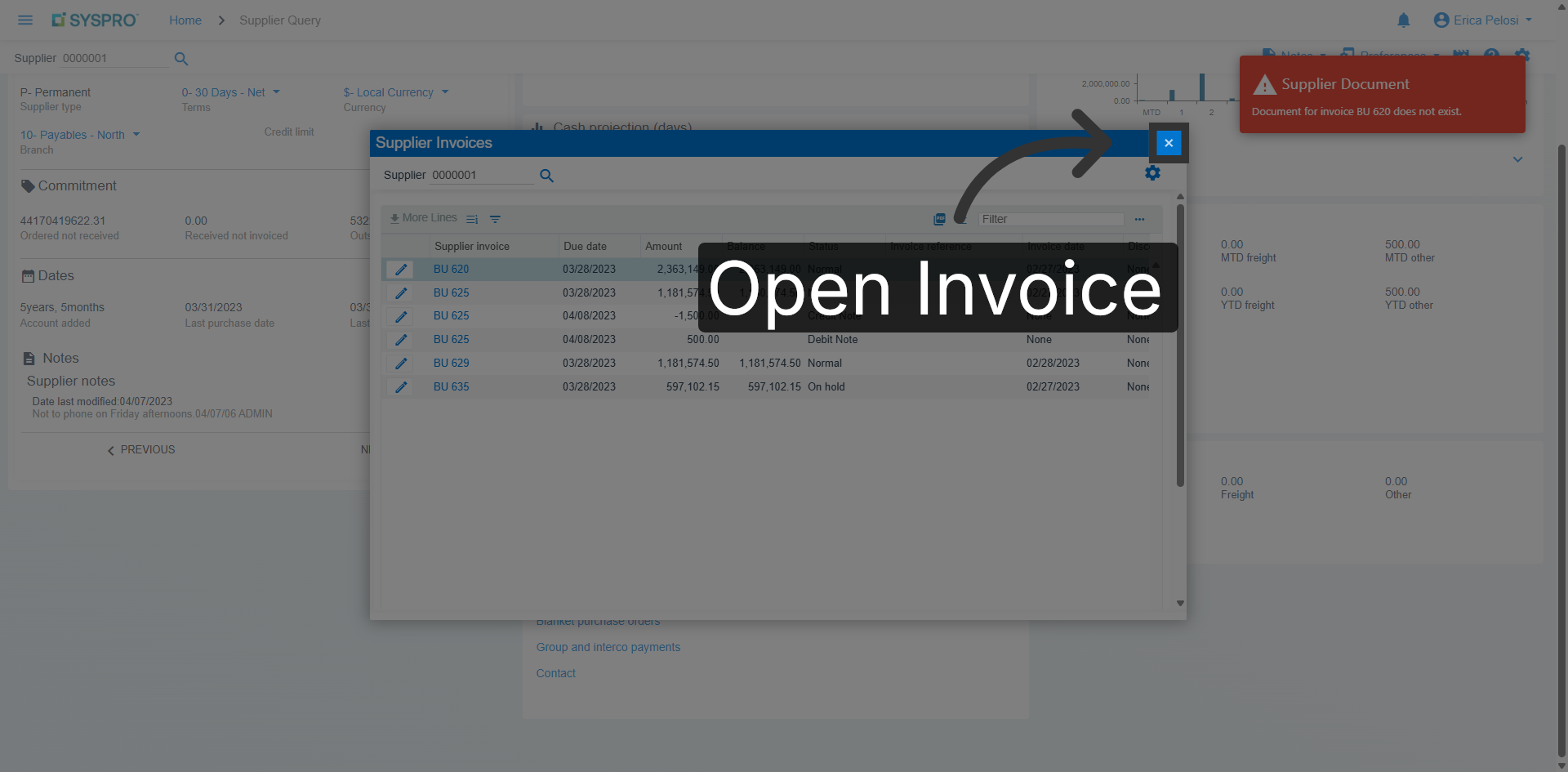
Open Invoice Details
Open the selected invoice to review its details and status.
13
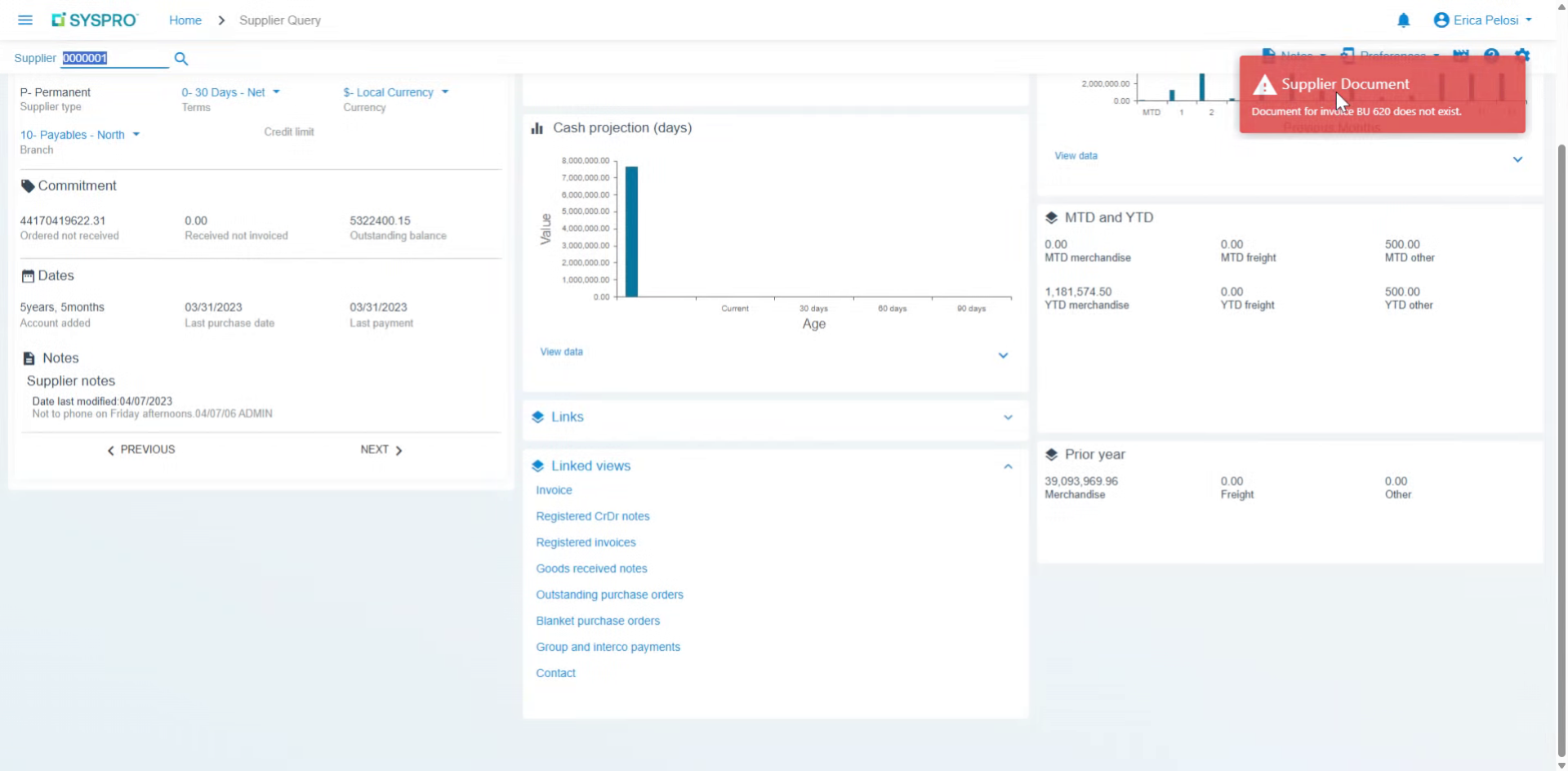
Download And Print Invoices
It will tell you if it exists and it will open it up, let you download or print.
Video content
14
Summarize Supplier Navigation
That is how you navigate in Syspro Avanti for supplier information in order to add or edit existing suppliers, and also how you would view any outstanding transactions or invoices from your suppliers.
Video content
15
Close And Preview Next Steps
Please join us next time when we go through Syspro Avanti tips and tricks. Thank you.