Purpose
This document is used to create purchasing terms and to specify discount for terms.
Menu Path
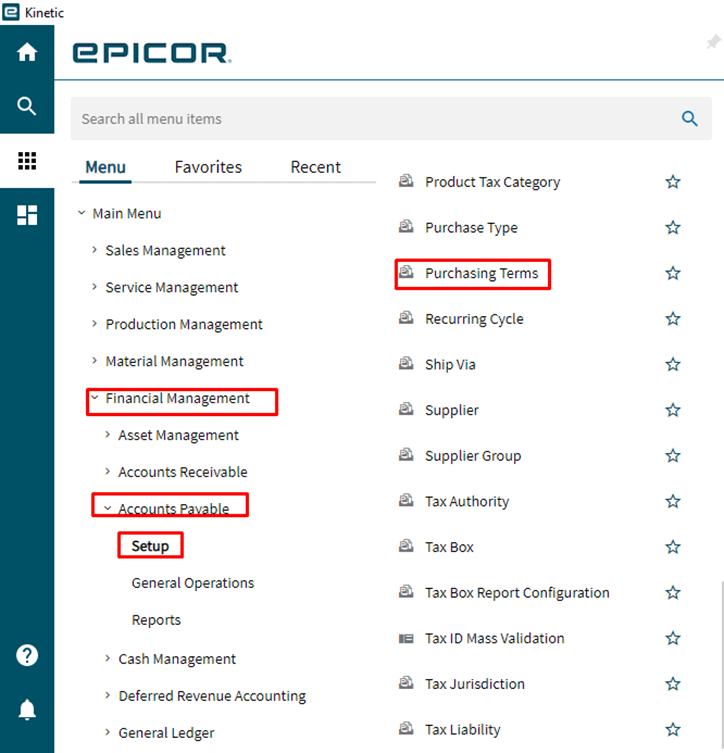
Add a new Terms
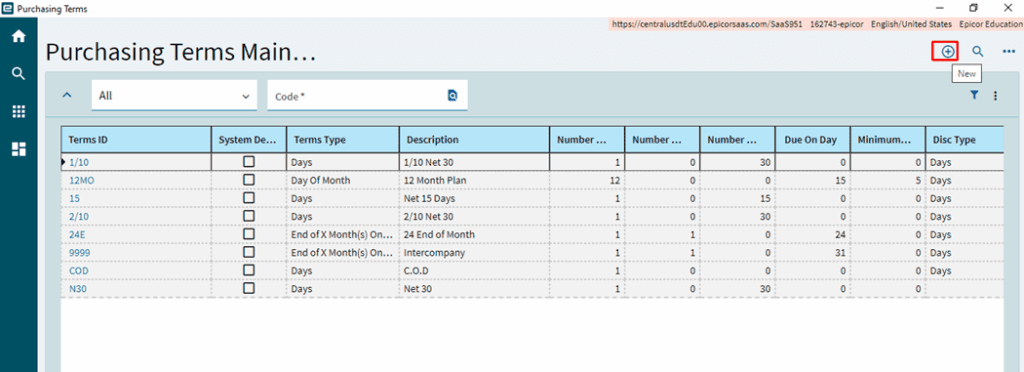
- Select New to add a new Terms.
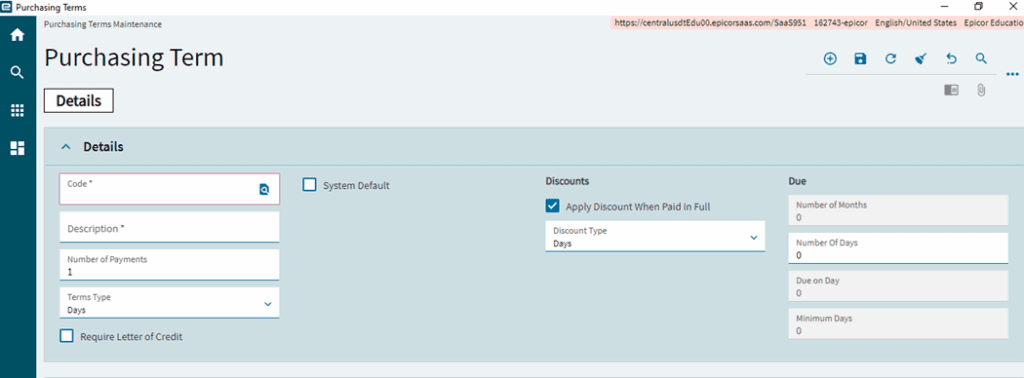
- Enter 4-digit character terms code in the code field.
- Enter Description of the terms,
- In the number of payments, enter number that the payment can be created for an invoice
- In Terms type field, select options Days, Day of Month, and End of X Month(s) plus Y day(s), this is for billing schedule.
- Select the System Default check box to default this term on creating new supplier records
- In the Discount Type field, select the option how the discount to be applied for the term. Discounts can be applied based on a number of days, a day of the month, or both (End of X Month(s) plus Y day(s)).
- Select the Apply Discount When Paid in Full check box to calculate discounts only against invoices that are fully paid.
- Click on save the records.
Add Discount
- Select New to add new Discount
- Enter number of days, the options will be enabled based on the Discount type field values,
- Enter the discount percentage, Click on Save.